Share a stat card
Export one game, a slice of your career, or a teammate's season as a picture — where the button is, which window the card covers, and what is on it.
A stat card is a picture of your numbers with your spray chart on it, built to be posted somewhere else. Both apps make the same thing in the same two shapes — a tall one for a story and a square one for a feed — and both put slugstats.com on the bottom of it, which is the whole reason the feature exists.
A card covers one of four windows, and which one you get is decided before you tap Share rather than on the card. One game is the first: open from a game's own page, it shows that night — "3-for-4", the extra-base hits, the RBIs, the walk, the result and who you were playing. Your career is the second, and it is the one most people mean: the slash line big across the middle, then games, at-bats, hits, home runs, RBIs and OPS along a row under it. The third is any slice of that career, because a career card shared from the stats screen inherits every filter you have set — season, dates, won or lost, home or away, opponent, field, and which team you were playing for — and names the slice on the card itself, so an export can never quietly claim to be more than it is. The fourth is somebody else: a teammate's or a roster-only player's season or career, shared from their page on the team.
Both apps add one more thing on a career card, a row headed What this card shows. It offers the window you are already looking at, your last five games, a season, and your best game — but only the ones that are both true and better than what you have on screen, so there is no empty row and nothing ever tells you no good window was found. Picking one replaces the slice rather than narrowing it: Last 5 games means your last five, not your last five against the team you had filtered to.
On your phone
- For one game: open the Games tab, open the game, and tap the share arrow in the header — Share card.
- For your career or a slice of it: open the Stats tab and tap the share arrow in the header, which reads Share career card. Your active filters travel with it, so the card shows the slice the screen was showing.
- For a teammate: the Teams tab, the team, the player's row, then the share arrow in that header. It works the same for a roster-only player, and their card carries the team's join link in place of the slugstats.com line, so the picture doubles as the invitation.
- Choose Story or Square at the top, and Dark or Light beside it. The palette is the card's own — it ignores whether the app itself is in dark mode — and the phone remembers which you picked.
- On a career card, a row headed What this card shows may appear under them — Current view, Last 5 games, a season of yours, Best game, each with its line underneath. Tap one and the card redraws as that window.
- Tap Share at the bottom to hand the picture to the usual share sheet. If the screen says "Nothing to share yet." instead, the window you asked for has no plate appearances in it — usually a filter combination that excludes everything.
On the web
- For one game: open the game and click the share arrow in the row of icons beside the score — it is labelled Share card. It only appears once you have a plate appearance in that game.
- For your career or a slice of it: open Performance and click the same icon at the right-hand end of the filter row. Set the filters first; the card is built from whatever they say when you click.
- For a teammate: open the team, click the player's name, then the share arrow beside their name at the top of their page. It works the same for a roster-only player, and their card carries the team's join link in place of the slugstats.com line, so the picture doubles as the invitation. The season chips under their name decide which season the card covers, and the arrow only appears once they have a plate appearance in the one you picked.
- Whichever you chose, a dialog opens headed Share your card, with the card itself previewed inside it.
- On a career card, a row headed What this card shows may appear above the preview — Current view, Last 5 games, a season of yours, Best game, each with its line underneath. Click one and the preview redraws as that window.
- Pick Story · 9:16 or Square · 1:1 at the foot of the dialog. The button opens the image in a new tab; long-press it on a phone or right-click on a desktop to save or share it from there.
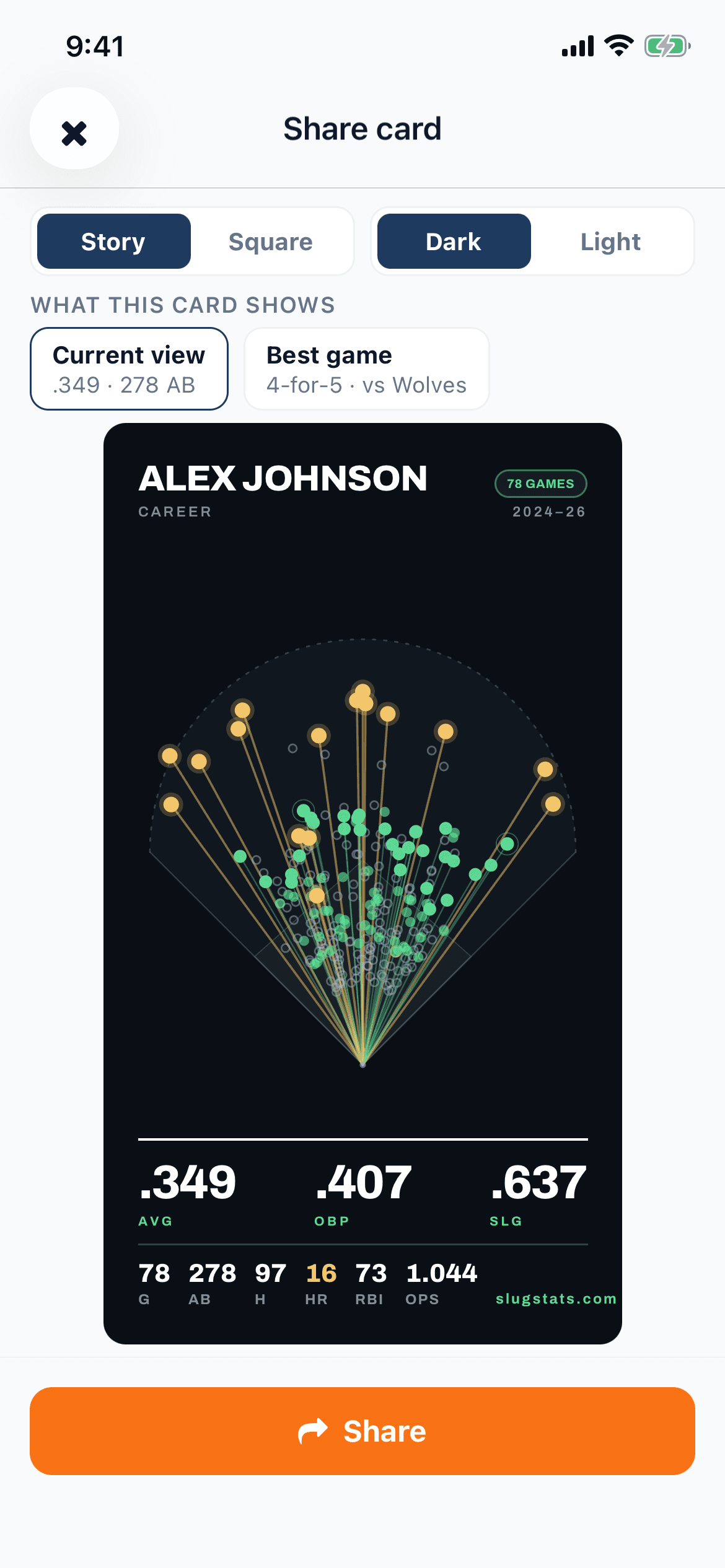
The chart on a card is drawn from your real locations but is not coloured like the one in the app, and that is on purpose: a card is read at thumbnail size on somebody else's screen. Outs are faint hollow rings rather than red dots, every hit is one accent colour, home runs keep the gold and get a glow, and an extra-base hit draws a thin ray back to home plate so the long ones read as long. A fielder's choice or an error is a hollow ring too.
Three limits worth knowing before you go looking. Your own cards are your own data only — there is no way to export somebody else's career as though it were yours. A teammate's or roster-only player's card has no What this card shows row, on either app: the windows it suggests are worked out from your own at-bats, so on somebody else's card they would describe the wrong player — pick the season with the chips on their page instead. And a card is a picture taken when you tapped the button, so it does not update later: if the game gets fixed afterwards, share it again.
Not sure what a stat on this screen means? The glossary explains it.
Related guides
Still stuck?
Try the rest of the guides or the support page. Sending feedback from inside the app reaches a real person.